Best 75% Keyboards in 2026: Top Picks for Gaming, Work, and Everyday Use
Looking for the best 75% keyboard for gaming, work, or everyday typing? This guide compares six keyboards across different budgets and priorities, including the Keychron V1 Max, EPOMAKER x AULA F75, WOBKEY Rainy75, NuPhy Air75 V3, Wooting 80HE, and ASUS ROG Azoth. Compare dimensions, connectivity, switch compatibility, battery claims, customization, and approximate U.S. prices to find a keyboard that fits your workflow and desk.
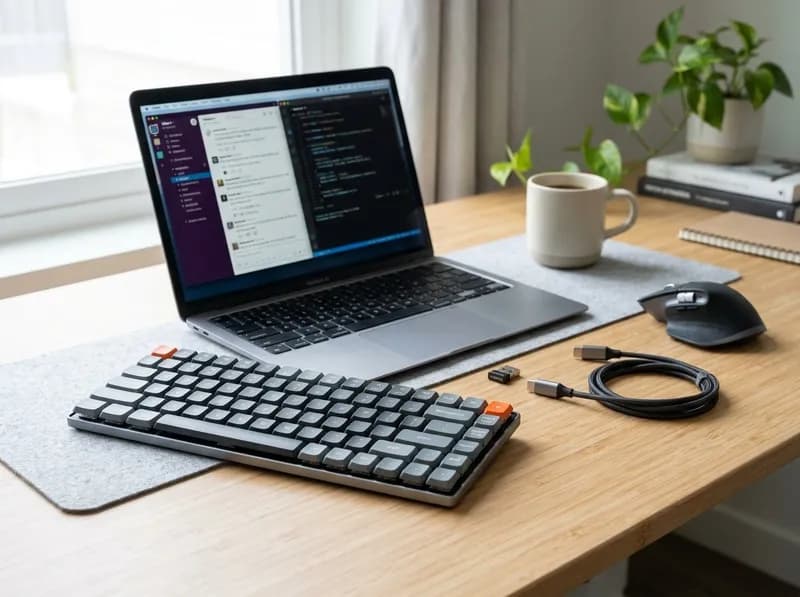
The best 75% keyboard gives you dedicated F1–F12 keys and arrow keys without taking up the space of a tenkeyless (TKL) board. For people who switch between work, programming, and gaming, that combination is often more practical than a smaller layout that hides the function row behind an Fn shortcut.
The main question is whether you use those keys often enough to justify keeping them. If you regularly use F-key shortcuts in games, spreadsheets, development tools, or creative software, a 75% keyboard is a sensible middle ground. If you rarely touch F1–F12 and want as much room as possible for your mouse, a 65% keyboard may be a better fit. If you prefer a conventional navigation cluster, consider TKL.
Layout labels alone do not tell you how much desk space a keyboard occupies. Two 75% models can differ noticeably in depth because of their case design, key spacing, navigation cluster, and rotary controls. Compare the published dimensions of the exact model rather than assuming every 75% keyboard has the same footprint.
Quick Comparison: Best 75% Keyboards
The following keyboards suit different budgets and workflows. The Wooting 80HE is included as a competitive-gaming alternative, but it is an 80% layout rather than a true 75% keyboard.
Keyboard | Best for | Layout | Connection | Dimensions (W × D) | Approx. weight | Approx. U.S. price |
|---|---|---|---|---|---|---|
Keychron V1 Max | Best overall balance | 75% | USB-C, 2.4 GHz, Bluetooth | 328.5 × 148.7 mm | 770 g | Around $100 |
EPOMAKER x AULA F75 | Budget wireless typing | 75% | USB-C, 2.4 GHz, Bluetooth on wireless version | 322.7 × 143.2 mm | About 1,023 g with cable and receiver | Around $50–80 |
WOBKEY Rainy75 | Aluminum build for less | 75% | USB-C, 2.4 GHz, Bluetooth | 317.5 × 139.7 mm | 1.8–2.0 kg | Around $120–140 |
NuPhy Air75 V3 | Low-profile work and travel | 75% | USB-C, 2.4 GHz, Bluetooth | 318.9 × 128.9 mm | 724 g | Around $120–160 |
ASUS ROG Azoth | Premium wireless gaming | 75% | USB-C, 2.4 GHz, Bluetooth | 326 × 136 mm | 1,186 g | Around $200 |
Wooting 80HE | Competitive gaming with magnetic switches | 80% | USB-C wired | 346 × 142 mm | About 849 g | Around $200 for the original version |
Dimensions and weights are manufacturer specifications where available. Prices are approximate U.S. market references, not guaranteed current offers. Switches, keycaps, case materials, wireless support, and other features can vary by configuration. The Wooting 80HE+ has also been introduced, so check the exact version and availability before ordering.
A few distinctions matter more than the headline features. The V1 Max offers broad customization without a premium case price. The AULA F75 is aimed at buyers who want wireless convenience on a tight budget. The Rainy75 adds an aluminum case, while the Air75 V3 prioritizes a shallow, low-profile design. The Azoth combines wireless gaming features with an OLED display and control knob. The Wooting is a specialist option for players who will use adjustable actuation and Rapid Trigger.
How These Keyboards Were Selected
The shortlist focuses on distinct use cases rather than treating the longest feature list as the winner.
Published specifications: Dimensions, weight, connection modes, battery claims, and switch compatibility are taken from manufacturer documentation where available. Battery-life figures are manufacturer estimates, not guaranteed real-world results.
Independent reviews: Third-party testing can help assess latency, typing feel, and usability, but results depend on the reviewer's methods and test conditions. This guide does not claim hands-on testing by its author.
Different budgets and designs: The selections cover plastic and aluminum cases, conventional and low-profile mechanical switches, wireless and wired designs, and magnetic-switch gaming.
Practical trade-offs: Each recommendation includes reasons to choose another model, especially when the extra cost buys features that will not matter to a particular buyer.
Two additional models are worth considering: the Keychron Q1 Max for a premium aluminum typing experience and the MonsGeek M1 V5 TMR for buyers interested in magnetic-switch features in a compact wireless design. They are discussed separately rather than treated as interchangeable alternatives.
75% vs. 65% vs. TKL: Which Layout Should You Choose?
Keyboard percentages are informal layout categories, not exact measurements of area. A typical 75% keyboard keeps the function row and arrow keys while compressing the navigation cluster. A 65% layout usually removes the dedicated F-row. A TKL keyboard keeps the function row and a more conventional navigation cluster but removes the numpad.
What each layout keeps
Layout | Dedicated F-row | Arrow keys | Navigation keys | Main trade-off |
|---|---|---|---|---|
75% | Yes | Yes | Compact cluster; arrangement varies | Keeps the F-row in a relatively narrow layout |
65% | Usually no | Yes | Reduced cluster; some keys use Fn layers | More compact key arrangement, with more reliance on shortcuts |
TKL | Yes | Yes | Fuller, more conventional cluster | Wider than most 75% boards |
A 75% keyboard usually retains Delete, Home, End, and page-navigation keys, although their positions may differ from a TKL layout. A 65% keyboard keeps the arrows but typically moves F1–F12 to a function layer. That is manageable for occasional use, but it can become tiresome if you press F2 or F5 throughout the day.
TKL removes the numpad while preserving a familiar layout. It is a good option for programmers, writers, and office workers who frequently use the navigation cluster and do not need a smaller width.
Compare real dimensions, not percentages
These three Keychron models illustrate how much dimensions can vary across layouts. The footprint is calculated from width × depth, excluding cables, wrist rests, and accessories.
Keyboard | Layout | Width | Depth | Approx. footprint |
|---|---|---|---|---|
Keychron K6 Pro, plastic-frame ANSI | 65% | 313 mm | 104 mm | 325.5 cm² |
Keychron V1 Max | 75% | 328.5 mm | 148.7 mm | 488.5 cm² |
Keychron V3 Max | TKL | 367.8 mm | 149 mm | 548.0 cm² |
The K6 Pro measurements above are specifically for the plastic-frame version; the aluminum-frame version is larger. Dimensions are taken from Keychron's published specifications.
For these models, the V1 Max footprint is about 11% smaller than the V3 Max's. The K6 Pro footprint is about 33% smaller than the V1 Max's, largely because it is much shallower. These calculations apply to these specific keyboards, not to every model sold as 65%, 75%, or TKL.
Depth deserves as much attention as width. The V1 Max is nearly 149 mm deep, compared with 104 mm for the plastic-frame K6 Pro. If your desk is short from front to back, that difference may matter more than a small change in width. If you play with a low mouse sensitivity and need room for broad mouse movements, width is also important.
Measure the keyboard you plan to buy. Generic charts that give a single “typical 75% size” can be misleading because case borders, key spacing, and navigation layouts vary.
Do You Need Dedicated F1–F12 Keys?
A 75% or TKL keyboard lets you press F5 directly. On a typical 65% board, the same function requires an Fn layer or a custom mapping. The key still exists, but reaching it involves another step.
That difference is especially noticeable when switching between computers, using remote desktops, or working in software where you have not customized the keyboard.
Who benefits from a dedicated function row?
PC gaming: Some games use F-keys for inventory, quick slots, or camera controls. Others rely mainly on WASD and the mouse. Check the controls for the games you actually play.
Spreadsheets and office work: F2, F4, F5, and F7 have useful roles in Windows applications, including Excel. The benefit depends on your workflow and software.
Programming: IDEs, debuggers, and terminal tools sometimes assign important commands to function keys. Other workflows rely more on modifier combinations.
Creative software: Video, image, 3D, and audio applications often support custom shortcuts. Keeping familiar keys in the same positions can make established workflows easier to maintain.
BIOS, virtual machines, and remote desktops: Some technical environments rely on direct function-key input. Fn layers and remapping may not behave identically across every setup.
Everyday browsing and writing: If most of your work involves email, documents, and a browser, you may rarely need the function row directly.
F-key decision guide
Your workflow | Is a dedicated F-row useful? | Layout to consider |
|---|---|---|
Games that regularly use F-keys | Usually | 75% or TKL |
Competitive games played mainly with WASD and mouse | Depends on the game | 65% or 75% |
Frequent Excel and application shortcuts | Often | 75% or TKL |
Programming with function-key-heavy tools | Often | 75% or TKL |
Programming with custom layers and remaps | Not necessarily | 65% or 75% |
Writing, browsing, and everyday office work | Optional | 65% or 75% |
Small desk or low-sensitivity mouse use | Depends on key needs | 65% or a compact 75% |
Shared computers and remote desktops | Often useful | 75% or TKL |
A useful way to decide is to track how often you press function keys during a normal week. Daily use makes the dedicated row more valuable. If you use it only occasionally, an Fn layer may be a reasonable compromise.
The Best 75% Keyboards
These recommendations are based on published specifications and available independent reviews, not firsthand testing by this article's author. Product families often include different switch, case, keycap, and connectivity options, so check the exact configuration before buying.
1. Keychron V1 Max — Best Overall 75% Keyboard
Best for: People who want one keyboard for work, programming, and gaming without paying extra for a premium metal case.
The Keychron V1 Max combines a conventional 75% layout with three connection modes, hot-swappable mechanical switches, and QMK/VIA customization. It is a strong starting point for buyers who want flexibility without moving into the higher-priced aluminum category.
Published specifications: 328.5 × 148.7 mm; approximately 770 g assembled. The case is ABS plastic, with a PC plate and gasket mount. Keychron lists a front height of 21.5 mm and a rear height of 29.4 mm without keycaps.
Why consider it:
A practical layout: The dedicated F-row, arrow keys, and compact navigation cluster remain accessible without a numpad.
Three connection modes: USB-C wired, 2.4 GHz wireless, and Bluetooth 5.1. Keychron lists a 1,000 Hz polling rate over wired and 2.4 GHz connections, compared with 90 Hz over Bluetooth.
Flexible customization: Hot-swap sockets accept most three-pin and five-pin MX-style mechanical switches. QMK/VIA supports key remapping, macros, and layers.
A useful enthusiast feature set: The gasket mount, sound-dampening materials, and customizable switches offer room to adjust the typing experience without starting from a barebones kit.
The fully assembled version uses double-shot PBT keycaps in Keychron's OSA profile and Gateron Jupiter switches, depending on the specific listing. The stock keycaps are not shine-through, so the RGB lighting will not illuminate the legends in a dark room.
Keychron advertises up to 190 hours with the backlight off and up to 100 hours with RGB at its lowest brightness. These are manufacturer lab figures, and actual battery life depends on use.
Main drawbacks: The ABS case does not have the weight or metal feel of an aluminum board, and the 148.7 mm depth is substantial for a compact keyboard. The V1 Max is also a conventional mechanical keyboard, not a Hall effect model; it does not offer adjustable magnetic actuation or Rapid Trigger.
Who should buy it: Someone who wants a customizable daily keyboard for typing, work, programming, and general gaming.
Who should look elsewhere: Choose the Keychron Q1 Max if an aluminum case is worth the added cost, the NuPhy Air75 V3 if you prefer low-profile keys, or a 65% keyboard if you rarely use the function row.
Price guide: Around $100 for an assembled version, depending on retailer and sales. Barebones versions do not include the same switches and keycaps, so compare like-for-like configurations.
2. EPOMAKER x AULA F75 — Best Budget 75% Keyboard
Best for: Buyers who want a compact layout, hot-swappable switches, RGB, and wireless connectivity at a lower price.
The AULA F75 offers the core 75% layout without enthusiast-level pricing. Its wireless version combines Bluetooth, 2.4 GHz, and USB-C connectivity, while a separate wired-only version is also sold. The two should not be treated as identical products.
Published dimensions for the wireless version: 322.7 × 143.2 × approximately 43.1 mm. EPOMAKER lists its weight at about 1,023 g including the cable and receiver.
Why consider it:
Affordable layout: It keeps the function row and arrows while removing the numpad.
Wireless flexibility: The wireless version supports Bluetooth, 2.4 GHz, and wired USB-C.
Ready-to-use configuration: Depending on the version, the board comes with factory-installed switches and PBT keycaps, so there is no need to assemble it yourself.
Hot-swap support: Switch replacement offers a way to customize the typing feel without soldering, subject to the board's compatibility.
There are trade-offs. Some independent reviews and user reports describe issues such as key chatter or sticky spacebars on certain units. These reports do not establish a failure rate, but they are worth considering when comparing the F75 with more expensive models. EPOMAKER's listed configuration software supports Windows only, and the F75 is not a QMK/VIA board.
Descriptions such as “gasket-tuned” or “creamy sound” should also be treated as subjective. Switches, stabilizers, keycaps, desk surfaces, and typing technique all affect the sound.
Who should buy it: A budget-conscious buyer who wants a 75% layout and wireless convenience and does not need advanced firmware customization.
Who should look elsewhere: Buyers who need QMK/VIA should consider the V1 Max. macOS users should check their configuration needs before buying, and anyone who wants an aluminum case may prefer to save for the Rainy75.
Price guide: Roughly $50–80, depending on the version and current promotions. Confirm that the listing is for the wired or wireless model you want.
3. WOBKEY Rainy75 — Best Aluminum Value Pick
Best for: Buyers who want an aluminum case and gasket-mounted mechanical keyboard without moving into the highest price tiers.
The Rainy75 pairs a CNC-machined aluminum case with a gasket mount, hot-swappable switches, and three connection modes. It is available in Lite, Standard, and Pro versions, and their plates, batteries, and other details differ.
Published specifications: 317.5 × 139.7 × 37.6 mm, with weight varying from approximately 1.8 to 2.0 kg. The case is CNC 6063 aluminum, and the typing angle is listed at 7 degrees.
Why consider it:
Aluminum construction: The metal case gives it a more substantial feel than plastic boards in a similar price range.
Three connection modes: USB-C, 2.4 GHz wireless, and Bluetooth 5.0.
Different battery configurations: WOBKEY lists 3,500 mAh for Lite and Standard versions and 7,000 mAh for the Pro.
Customization: The board supports VIA, but setup may require loading the correct configuration file for the specific revision and connection mode. Check the official documentation before assuming remapping will work immediately.
Prebuilt convenience: Double-shot PBT keycaps and a multi-layer internal structure are included, with components varying by version.
WOBKEY's published battery estimates are approximately 450 hours for Lite/Standard and 900 hours for Pro with RGB off. With RGB on, the official figures are lower. Treat these as manufacturer estimates rather than expected daily-use results.
Main drawbacks: At 1.8–2.0 kg, the Rainy75 is heavy for travel. The range has multiple versions, so the name alone does not identify the battery, plate, or switch configuration. VIA support is useful, but the correct JSON file and firmware version matter.
Who should buy it: Someone who wants an aluminum 75% keyboard with wireless connectivity and is willing to verify the exact version.
Who should look elsewhere: Frequent travelers may prefer the lighter Air75 V3. Buyers who prioritize a long-established customization ecosystem may prefer a Keychron model, while buyers who do not care about metal construction can save money with the V1 Max or AULA F75.
Price guide: Around $120–140 for some U.S. Lite and Standard listings, with Pro versions generally costing more. Check the current listing and included configuration.
4. NuPhy Air75 V3 — Best Low-Profile 75% Keyboard for Work
Best for: People who prefer laptop-height keys, switch between devices, or need a shallow keyboard for a desk with limited depth.
The NuPhy Air75 V3 combines a 75% layout with a low-profile design. Its shallow body makes it a particularly relevant option for laptop users and anyone who finds conventional mechanical keyboards too tall.
Published specifications: 318.9 × 128.9 × 13.2 mm and approximately 724 g. It has an aluminum top case, ABS bottom case, PC plate, and double-shot PBT keycaps.
Why consider it:
Shallow footprint: At 128.9 mm deep, it takes up less front-to-back space than the conventional-height keyboards in this guide.
Three connection modes: USB-C wired, 2.4 GHz wireless, and Bluetooth 5.0.
Connection-specific polling rates: NuPhy lists 1,000 Hz over wired and 2.4 GHz, compared with 125 Hz over Bluetooth.
Multi-device use: Bluetooth pairing makes it convenient for moving between a desktop, laptop, tablet, or other compatible device.
Independent testing: RTINGS has tested the Air75 V3 and reported very good latency over its gaming connections, although low-profile typing and key travel may take adjustment.
The stock keycaps are not shine-through, so the RGB lighting does not make the legends easier to read in a dark room. The low-profile switch system also limits compatibility: it is designed for compatible Gateron low-profile 3.0 switches, not standard-height MX switches.
NuPhy's published battery figures vary across parts of its product information. The specifications page lists up to 761 hours with lighting off in one section and up to 1,200 hours in another. Because those figures conflict, it is better not to rely on a single maximum until NuPhy clarifies the applicable configuration. Battery life will also vary with lighting and use.
Who should buy it: A wireless-first user who prefers a low-profile mechanical keyboard and needs to keep the desk footprint shallow.
Who should look elsewhere: Choose the V1 Max or Rainy75 if you want standard-height MX switch compatibility and a conventional mechanical-keyboard feel. For gaming, use wired or 2.4 GHz rather than assuming Bluetooth offers the same latency.
Price guide: Roughly $120–160, depending on configuration and retailer. Check NuPhy's current U.S. listing before buying.
5. ASUS ROG Azoth — Best Premium Wireless Gaming 75% Keyboard
Best for: Gamers who want wireless connectivity, an OLED display, a control knob, and a more premium out-of-box experience.
The ROG Azoth combines a 75% layout with an aluminum top case, gasket mounting, internal damping, and tri-mode connectivity. Its OLED display and three-way control knob set it apart from more basic compact mechanical keyboards.
Published specifications: 326 × 136 × 40 mm and approximately 1,186 g without the cable. ASUS lists USB-C wired, 2.4 GHz RF, and Bluetooth connectivity.
Why consider it:
Wireless gaming options: The 2.4 GHz connection is designed for gaming, while Bluetooth supports multi-device use.
OLED display and control knob: The display can show system or keyboard information, while the knob provides quick access to supported controls.
Enthusiast features out of the box: The original Azoth includes hot-swappable ROG NX switches, pre-lubed stabilizers, PBT double-shot keycaps, and a switch-lubing kit.
Mainstream retail support: It is sold through major retailers, although warranty terms and stock depend on the market.
ASUS advertises more than 2,000 hours of battery life in a specific 2.4 GHz configuration with OLED and RGB lighting off. This is a manufacturer claim under restricted settings, not a realistic guarantee for every setup.
Main drawbacks: At around $200, the Azoth costs substantially more than the V1 Max despite offering a similar layout. The extra cost goes toward construction and features, not a smaller footprint. It is also not a Hall effect keyboard, so it does not offer adjustable magnetic actuation or Rapid Trigger.
The original Azoth and the higher-priced Azoth Extreme are separate models. Check the full product name and specifications before comparing prices.
Who should buy it: A gamer who values wireless connectivity, the OLED display, the knob, and the included accessories enough to pay a premium.
Who should look elsewhere: The V1 Max is a more economical choice for general work and gaming. The Wooting 80HE or 80HE+ is better suited to competitive players who specifically want magnetic-switch features.
Price guide: Around $200 at the original U.S. MSRP, with street prices varying by retailer and sale. Confirm that the listing is for the standard Azoth rather than the Azoth Extreme.
6. Wooting 80HE — Best for Competitive Gaming with Magnetic Switches
Best for: Competitive FPS players who want adjustable actuation and Rapid Trigger and do not need wireless connectivity.
The Wooting 80HE is not a 75% keyboard. It uses an 80% layout with a dedicated function row and arrow keys, in a 346 × 142 mm body. It is included because it is a useful comparison for buyers considering compact keyboards built around magnetic-switch gaming features.
The original 80HE and the newer 80HE+ should be treated as separate versions. Wooting says the 80HE+ retains the core feature set while introducing changes to the switch plate, switches, case options, and certain configurations.
Published specifications for the original 80HE: Approximately 346 × 142 mm and 849 g. It uses Hall effect magnetic switches, supports Rapid Trigger and adjustable actuation in 0.1 mm steps, and offers up to 8 kHz polling in Tachyon mode. The standard ABS version was listed at $199.99, although current stock and pricing can differ now that the 80HE+ has been introduced.
Why consider it:
Adjustable actuation: You can choose how far a key must move before registering, which can suit players who want a highly tuned input setup.
Rapid Trigger: The feature changes how key release and reactivation are detected, allowing rapid repeated inputs without relying on a fixed reset point in the same way as conventional mechanical switches.
High polling rate: The keyboard supports true 8 kHz polling in Tachyon mode. That is a specification, not a guarantee of an equivalent improvement in real-world response time.
Gaming-focused software: Wootility provides access to the keyboard's analog and magnetic-switch settings.
Main drawbacks: The 80HE is wired only, and its 80% layout is wider than most 75% boards. Its specialist features are most useful to players who will actually configure and use them. For typing, general office work, or casual gaming, a conventional mechanical keyboard may be simpler and less expensive.
Who should buy it: Competitive players who want to tune actuation and Rapid Trigger and are comfortable with a wired setup.
Who should look elsewhere: For wireless 75% gaming, consider the ASUS ROG Azoth or a compatible magnetic-switch alternative such as the MonsGeek M1 V5 TMR. For general work and gaming, the Keychron V1 Max is more balanced.
Price guide: The original ABS version launched at $199.99. Since the 80HE+ has been announced, check which version is available, its current price, and its expected delivery date before ordering.
Other Keyboards Worth Considering
The main shortlist does not cover every type of 75% keyboard. These alternatives are useful when a specific material, switch system, or layout matters more than an all-round recommendation.
Keychron Q1 Max — Premium Aluminum Typing
The Q1 Max offers a similar 75% layout to the V1 Max in a much heavier aluminum case. Its published dimensions are approximately 327.5 × 145 mm, with a weight around 1.72 kg. It combines gasket mounting, hot-swap support, QMK/VIA, and wired, 2.4 GHz, and Bluetooth connectivity.
Choose it over the V1 Max if you value the metal case and heavier construction enough to justify the extra cost. It does not save meaningful desk space, and the basic layout is similar. Check the current price and configuration rather than assuming a fixed price premium.
MonsGeek M1 V5 TMR — Wireless Magnetic-Switch Alternative
The MonsGeek M1 V5 TMR is a compact aluminum keyboard built around TMR magnetic sensing. TMR and Hall effect are different magnetic sensing technologies, although both can support adjustable actuation and related gaming features when implemented by the keyboard.
Some versions have been listed around $130–150, but the M1 V5 family has multiple revisions and configurations. Verify the exact SKU, switch compatibility, battery capacity, connection modes, and polling-rate specification before buying. Do not assume every M1 V5 listing has the same features.
This is worth researching if you want magnetic-switch features without committing to the wired-only Wooting layout, but the exact revision matters.
Keychron Q2 Max — Premium 65% Reference
The Q2 Max shows what a smaller premium layout can offer when you do not need a dedicated function row. It keeps the arrow keys in an aluminum body and supports QMK/VIA and wireless connectivity. Its published dimensions are approximately 327 × 121 mm.
It is a reference point rather than a 75% recommendation: choose it if compactness and the metal case matter more than direct F-key access.
Keychron V3 Max — TKL Reference
The V3 Max uses a TKL layout with a more conventional navigation cluster. Keychron lists its dimensions at 367.8 × 149 mm and its assembled weight at approximately 895 g.
It is worth considering if you frequently use Home, End, Page Up, Page Down, and other navigation keys and prefer their familiar positions. It is wider than the V1 Max, but it keeps the numpad removed.
Rainy75 vs. Bridge75
Both the Rainy75 and Bridge75 target buyers who want an aluminum 75% keyboard with wireless connectivity. The Rainy75 is available in Lite, Standard, and Pro versions, while the Bridge75 is often considered for its case design and customization features.
Prices and specifications vary by version and retailer, so compare the exact models rather than treating either family as a single fixed configuration. If VIA support is important, check the manufacturer's documentation for the exact board revision and connection mode.
What to Look for in a 75% Keyboard
Wired vs. 2.4 GHz vs. Bluetooth
Wired USB-C is straightforward for a fixed desktop setup and does not require battery management. 2.4 GHz wireless uses a dedicated receiver and is often the better wireless choice for gaming. Bluetooth is convenient for laptops and multi-device setups, but polling rates and latency can differ from the other modes.
For example, Keychron lists 1,000 Hz over wired and 2.4 GHz and 90 Hz over Bluetooth for the V1 Max. NuPhy lists 1,000 Hz for wired and 2.4 GHz and 125 Hz for Bluetooth on the Air75 V3. WOBKEY lists 1,000 Hz over wired and 2.4 GHz and 500 Hz over Bluetooth for the Rainy75.
These are manufacturer specifications. Polling rate alone does not establish total input latency, and results from different keyboards should not be compared as if they came from one standardized test.
For office use, prioritize device switching and operating-system compatibility. Confirm that the keyboard's shortcuts and configuration tools work with your version of Windows, macOS, or Linux.
Hot-Swap: Useful, but Check Compatibility
A hot-swap socket lets you replace compatible switches without soldering. It does not mean every switch will fit.
Before buying replacement switches, check:
Whether the sockets accept three-pin or five-pin MX-style switches.
Whether the board uses standard-height or low-profile switches.
Whether the keyboard uses magnetic sensing. Hall effect and TMR keyboards generally use dedicated magnetic-switch hardware rather than ordinary MX mechanical switches.
Whether the replacement switches are supported by the board's electronics and firmware.
The Air75 V3, for example, uses a low-profile switch system. Standard-height MX switches are not interchangeable with its low-profile switches.
Linear, Tactile, or Clicky Switches?
Linear switches move without a tactile bump and are popular for gaming. Tactile switches provide a noticeable bump that some typists prefer. Clicky switches add audible feedback, which may be distracting in shared spaces.
Switch colors are not standardized across brands, so do not assume that two switches called “red” or “brown” feel the same. The case, mounting system, plate, stabilizers, keycaps, and desk surface also influence the sound and feel.
Descriptions such as “creamy,” “thocky,” or “gasket-tuned” are subjective impressions, not standardized performance specifications.
Firmware and Key Remapping
QMK/VIA support is useful if you want to remap keys, build layers, or create macros. The Keychron V1 Max and Q1 Max are examples of boards with QMK/VIA support. The Rainy75 also supports VIA, but some versions require the correct configuration file for the board and connection mode.
Other keyboards use their own software. EPOMAKER lists Windows-only software for the AULA F75, while NuPhy and ASUS provide their own configuration tools. Check operating-system support before buying if you rely on macros or custom layouts.
Fn layers can make a 65% keyboard practical, but they add another step to function-key shortcuts. That is a minor compromise for occasional use and a more significant one if you press F2 or F5 repeatedly throughout the day.
Keycap Compatibility
A 75% keyboard is not automatically compatible with every keycap set. Check the layout before ordering replacement keycaps.
Right Shift: Compact layouts often use a 1.75u right Shift instead of the standard 2.25u key.
Bottom row: Modifier keys and the spacebar row can use different sizes from a full-size ANSI keyboard.
Navigation cluster: Make sure the set includes the smaller keys your particular layout needs.
Profile and switch height: Low-profile boards require compatible low-profile keycaps.
Knobs and case design: Rotary controls and unusual top-right corners can limit which sets fit cleanly.
A standard ANSI keycap set may leave some keys uncovered on a compact 75% layout. Check the included key sizes rather than relying on the layout label.
Build, Mounting, and Price
An aluminum case adds weight and changes the feel of the keyboard, but it also costs more and is less convenient to carry. A plastic case can be a sensible choice if you value low weight and affordability.
Gasket mounting, plates, stabilizers, and internal foam affect typing feel and sound, but no single feature guarantees a particular result. Prioritize the characteristics you will notice every day:
For typing: Comfortable height, stable larger keys, and a suitable switch feel.
For gaming: Connection mode, latency evidence, and the features supported by the games you play.
For customization: Verified hot-swap compatibility and firmware support.
For travel or shallow desks: Actual depth and weight, not just the percentage label.
For value: Compare the features you will use rather than assuming a more expensive keyboard is automatically better.
A $200 keyboard is not necessarily a better buy than a $100 model if both offer the layout and typing experience you need.
Which 75% Keyboard Should You Buy?
Your priority | Best starting point | Why |
|---|---|---|
Work, programming, and general gaming | Keychron V1 Max | Tri-mode connectivity, hot-swap, QMK/VIA |
Tight budget | EPOMAKER x AULA F75 | Affordable 75% layout with wireless options |
Aluminum case without a high-end price | WOBKEY Rainy75 | CNC aluminum, gasket mount, tri-mode connectivity |
Laptop-height typing and a shallow desk | NuPhy Air75 V3 | Low-profile design and 128.9 mm depth |
Wireless gaming with premium features | ASUS ROG Azoth | OLED display, control knob, tri-mode connectivity |
Competitive FPS with magnetic switches | Wooting 80HE or 80HE+ | Adjustable actuation and Rapid Trigger; wired-only |
Premium aluminum typing | Keychron Q1 Max | Heavy aluminum case with QMK/VIA |
Wireless magnetic-switch features | MonsGeek M1 V5 TMR | Magnetic sensing in a compact aluminum design; verify revision |
Compact layout without a dedicated F-row | Keychron Q2 Max | 65% layout with arrow keys |
Conventional navigation cluster | Keychron V3 Max | TKL layout with familiar navigation keys |
If your desk is tight from front to back, the Air75 V3's 128.9 mm depth is a useful benchmark. If mouse space is the priority, compare the exact widths of the boards you are considering. The Rainy75 is 317.5 mm wide, while the V1 Max is 328.5 mm wide, but the Rainy75 is also heavier. Width alone does not tell the whole story.
Common 75% Keyboard Buying Mistakes
Assuming every 75% keyboard has the same dimensions. Compare width and depth for the exact model.
Choosing 65% without considering F-key use. Test whether an Fn layer is comfortable if you use function keys frequently.
Assuming all wireless connections behave alike. Bluetooth and 2.4 GHz can have different polling rates and latency.
Treating sound descriptions as guarantees. Terms such as “thocky” describe subjective results, not standardized performance.
Buying keycaps without checking sizes. Right Shift and bottom-row keys can differ from a standard ANSI set.
Paying for construction you will not notice. Aluminum and gasket mounting are worthwhile only if their benefits matter to you.
Estimating desk space from key count. A keyboard's percentage does not equal its percentage of desk area.
Treating polling rate as the whole latency story. Connection, firmware, hardware, and the host system also matter.
Assuming all hot-swap boards accept the same switches. Standard MX, low-profile, and magnetic systems are not interchangeable.
Forgetting the mouse and wrist rest. A compact keyboard can still leave an awkward desk setup when other accessories are added.
Ignoring product revisions. AULA F75 wired and wireless versions, Rainy75 tiers, MonsGeek M1 V5 revisions, Wooting 80HE and 80HE+, and ASUS Azoth and Azoth Extreme are not interchangeable. Verify the exact model before ordering.
Frequently Asked Questions
Is a 75% keyboard better than a 65% keyboard?
Neither is universally better. A 75% keyboard is more convenient if you regularly use F1–F12, while a 65% model can save space if you are comfortable using an Fn layer. Compare actual dimensions because layout percentages do not specify a keyboard's exact footprint.
Is a 75% keyboard smaller than a TKL keyboard?
A 75% keyboard is usually narrower because its navigation keys are arranged more compactly. The Keychron V1 Max is 328.5 mm wide, compared with 367.8 mm for the Keychron V3 Max TKL. Their depths are similar, so the footprint difference is smaller than the width difference alone might suggest.
How much desk space does a 75% keyboard save?
There is no universal percentage. For the Keychron V1 Max and V3 Max, the V1 Max has an approximately 11% smaller footprint based on published width and depth. Case borders, knobs, wrist rests, and the exact layout can change the result.
Do I need dedicated F1–F12 keys?
They are most useful if you regularly use function-key shortcuts in games, spreadsheets, development tools, or creative applications. If your work mostly involves browsing and documents, an Fn layer may be sufficient.
Is a 75% keyboard good for gaming?
Yes. It keeps the function row and arrow keys while removing the numpad, leaving more room than a TKL keyboard in many setups. Competitive players should also consider connection mode, independent latency testing, and whether adjustable actuation is worth the cost of a magnetic-switch keyboard.
Is a 75% keyboard good for programming?
For many programmers, yes. It retains the F-row and arrow keys in a compact layout. A TKL keyboard may be preferable if you frequently use the full navigation cluster, while a 65% board can work well if you are comfortable with layers and remapping.
Can a 65% keyboard replace the function row with shortcuts?
Usually. Most 65% keyboards access F1–F12 through an Fn layer, and programmable models may allow custom mappings. The experience is not identical if you use function keys frequently or work in environments where custom layers may not behave as expected.
Will my keycap set fit a 75% keyboard?
Not necessarily. Check the right Shift size, bottom-row modifier keys, and the smaller navigation keys. Low-profile keyboards also require compatible low-profile keycaps.
Should I choose wired, 2.4 GHz, or Bluetooth?
Wired is simple for a fixed desktop setup. 2.4 GHz is generally the better wireless option for gaming, while Bluetooth is convenient for laptops and multi-device use. Polling rates differ by model and connection mode, so check the manufacturer's specifications and independent latency tests where available.
What is a Hall effect or TMR keyboard, and do I need one?
Hall effect and TMR keyboards use magnetic sensing rather than conventional mechanical contacts. Depending on the implementation, they can support adjustable actuation, Rapid Trigger, and other gaming features. These are useful for players who will configure them, but they are not necessary for ordinary typing or general office work. Magnetic-switch systems generally do not accept standard mechanical switches.
Rainy75 vs. Bridge75: Which should I buy?
Both are aluminum 75% keyboards with wireless connectivity, but their versions, customization options, and prices can differ. Check the exact configuration and confirm that the required VIA setup works with your board revision. Compare current prices and stock rather than relying on a single headline price.
Can I get a 75% keyboard with a numpad?
A conventional 75% layout does not include a numpad. If you need one, consider a 96% or 1800-style keyboard, which fits a numpad into a more compact arrangement, or pair a 75% board with a separate numpad that you can move when you need extra mouse space.
Final Verdict
A 75% keyboard is a good fit if you want dedicated function keys and arrows without the width of a TKL board. For a balanced work-and-play setup, the Keychron V1 Max combines tri-mode connectivity, hot-swappable switches, and QMK/VIA customization at around $100. The AULA F75 is the budget option, while the WOBKEY Rainy75 offers an aluminum case and wireless connectivity for buyers who want a heavier build.
Choose the NuPhy Air75 V3 if you prefer low-profile keys and a shallow footprint. Consider the ASUS ROG Azoth if you value wireless gaming features, an OLED display, and a control knob. The Wooting 80HE or 80HE+ is aimed at competitive players who want magnetic-switch features and can accept a wired-only setup and an 80% layout.
The Keychron Q1 Max and MonsGeek M1 V5 TMR are worth investigating if premium construction or magnetic sensing is a priority. The Q2 Max and V3 Max provide useful reference points if you are still deciding between 65% and TKL.
Before you buy, measure your desk, think about how often you use F1–F12, and check the exact model, revision, switch system, connection mode, and current price. Those details will do more to determine whether a keyboard suits you than its layout percentage or feature list alone.
Related GuidesMore →
Best Lenovo Legion Gaming Laptops in 2026: Which Model Should You Buy?
Lenovo Legion's 2026 lineup includes gaming laptops, handheld PCs, Android tablets, desktop towers, and gaming monitors. This guide explains the differences between the Legion 5, Pro 5, 7i, Pro 7i, and flagship 9i, along with the newer 7a models and the entry-level LOQ series. Compare GPU power, displays, upgrade options, U.S. prices, and independent test results to find the right system for your budget and gaming needs.
How to Choose a JBL Bluetooth Speaker: Go, Clip, Flip, Charge, Xtreme, and Boombox Compared
Choosing a JBL Bluetooth speaker is easier when you match the model to how you actually listen. This guide compares the Go 5, Clip 5, Grip, Flip 7, Charge 6, Xtreme 5, Boombox 4, and PartyBox lineup by sound, portability, battery life, durability, and price. Find out which JBL speaker suits travel, everyday listening, outdoor gatherings, or parties, and when an older generation may offer better value than the newest model.
2026 Smartwatch Innovations: Which New Features Are Worth Buying?
Smartwatches in 2026 bring new readiness scores, AI health coaches, dual-frequency GPS, sleep apnea notifications, and longer battery life—but not every upgrade is worth the money. This guide compares the latest Apple Watch, Samsung Galaxy Watch, and Google Pixel Watch models, separating manufacturer claims from independent testing. Find out which features justify an upgrade, which require a subscription, and when keeping your current watch is the smarter choice.